Last Updated on 8. October 2026 by SuffocationLink status: OK
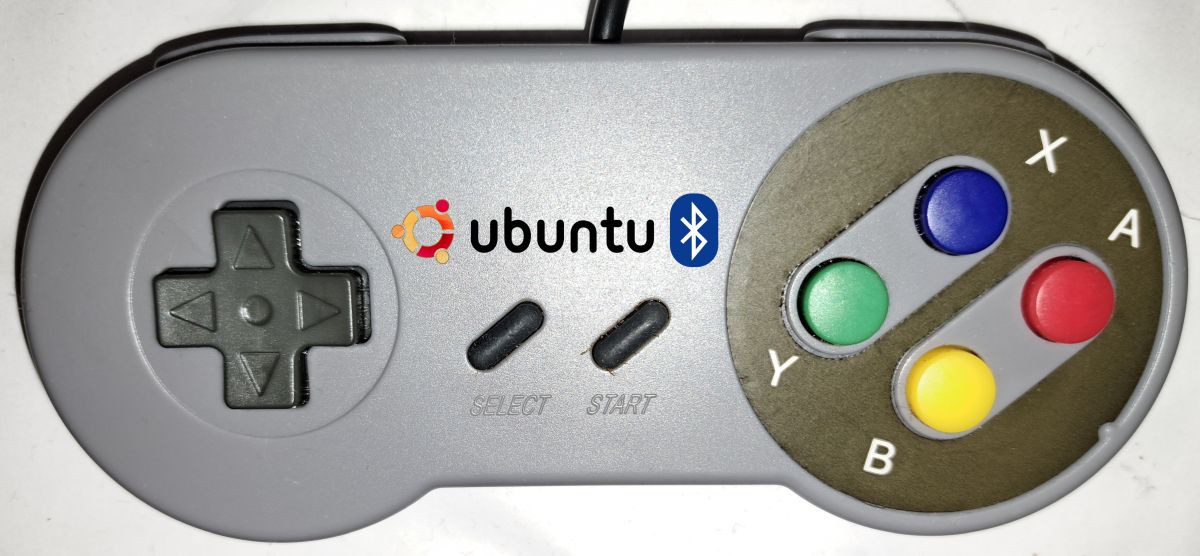
Einbinden eines beliebigen Bluetooth Gamecontrollers (Joystick, Gamepad, ….) unter Ubuntu 22.04. Wer keinen Controller zur Hand hat, kann unter folgendem Link nachsehen, wie man einen ESP32 zum Controller macht. Ich beschreibe hier den manuellen Weg, der eher dafür vorgesehen ist, wenn es mal in Gnome nicht klappt. Mit etwas Glück und unterstützter Hardware braucht man diesen aber nicht und kann einfach im Gnome nach dem Gerät suchen.
ESP32 Bluetooth GamepadLink status: OK
Facts
Required hardware
Bluetooth Game Controller
Required Software
- Ubuntu (22.04)
- BlueZ
- jstest-gtk
Areas of application
- Remote control
- RC control
- Joystick for games
Configuration
General Bluetooth Installation
Überprüfen, ob BlueTooth installiert ist:
sudo apt install bluez
Search for Bluetooth adapter
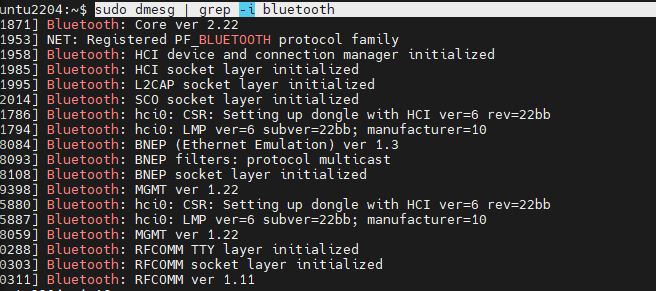
Mit dmesg nachsehen, ob der Bluetooth Dongle aktiv ist:
sudo dmesg | grep -i bluetooth
The output should look like this
Connect Bluetooth device
Start Bluetooth Tool
bluetoothctl
Nun das Pairing aktivieren, zuerst den BlueTooth Adapter sichtbar machen.
discoverable on
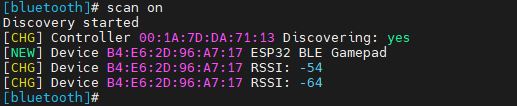
Nun das Scannen (Suche nach neuen Geräten) einschalten
Scan on
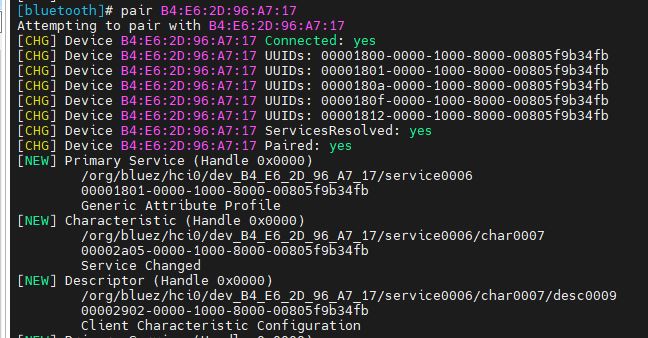
Zum Schluss noch den Gamecontroller verbinden (die Adresse bitte an euren Controller anpassen)
B4:E6:2D:96:A7:17

Exit to leave the program.
Gerät testen
Jetzt wird die Funktion getestet. Hierfür gibt es ein einfaches Tool jstest-gtk, Installation wie folgt:
sudo apt install jstest-gtk
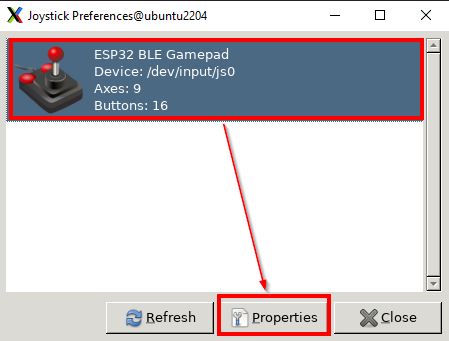
Starting the tool
jstest-gtk
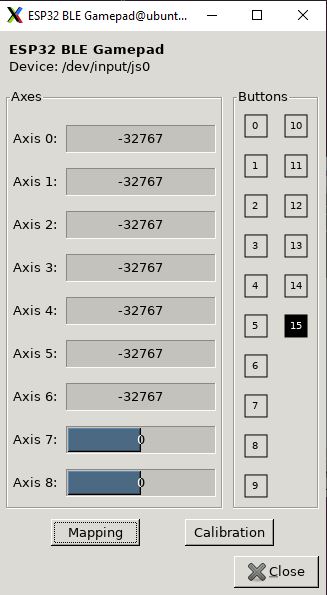
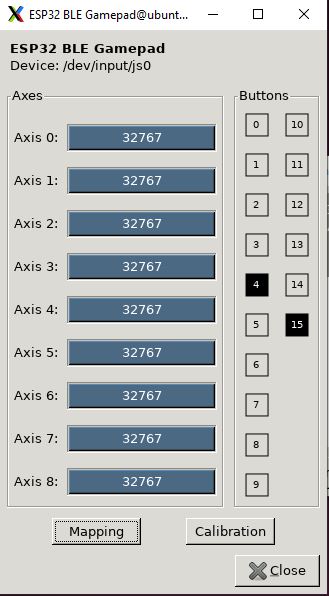
Tasten, Joysticks … auf dem Controller betätigen, dann sollten sich die Balken und Kästchen im Tool füllen.
Problems
Mapping
Evtl. stimmen die Knöpfe und Achsen nicht überein, dann können diese mit dem Knopf Mapping angepasst werden.
Conclusion
Klappt die Konfiguration mal nicht mit Gnome, gibt es ein paar nette Tools und Hilfsmittel. So einfach wie unter WindowsLink status: OK, ist es dann nicht mehr, aber auch unter Windows gibt es immer mal wieder Probleme mit Bluetooth Geräten und dort ist die Analyse dann erheblich schwieriger. Es gibt unter Ubuntu bestimmt noch einfachere Möglichkeiten, BlueTooth Geräte einzubinden, die gezeigte ermöglicht es jedoch, nach Fehlern zu suchen, wenn es mal nicht gleich beim ersten Mal klappt.
Related Posts
- PS3 controller under Ubuntu 2x.04Link status: OK
- PS3 controller on Windows 10Link status: OK
- ESP32 Bluetooth GamepadLink status: OK
- Bluetooth game controllers on Windows 10Link status: OK
Sources
NimBLE-ArduinoLink status: OK
NimBLE-Arduino New User GuideLink status: OK
NimBLE-Arduino API Link status: OK
https://github.com/lemmingDev/ESP32-BLE-GamepadLink status: OK
https://en.wikipedia.org/wiki/List_of_Bluetooth_profilesLink status: OK
https://en.wikipedia.org/wiki/USB_human_interface_device_classLink status: OK
https://www.usb.org/sites/default/files/documents/hid1_11.pdfLink status: OK
https://git.kernel.org/pub/scm/linux/kernel/git/torvalds/linux.git/commit/?id=4a1a4d8b87389e35c3af04c0d0a95f6a0391b964Link status: OK
| Date | Change | Author |
|---|---|---|
| 08.10.2026 | Überschriften-Hierarchie korrigiert (H1→H2, Unterebenen eine Stufe tiefer) | Suffocation |
| 04.10.2026 | Rechtschreibung korrigiert: Tippfehler, Kommas, Groß-/Kleinschreibung, Grammatik | Suffocation |
| 03.10.2026 | Log-Liste eingefügt | Suffocation |
| 02.01.2024 | Post created | Suffocation |